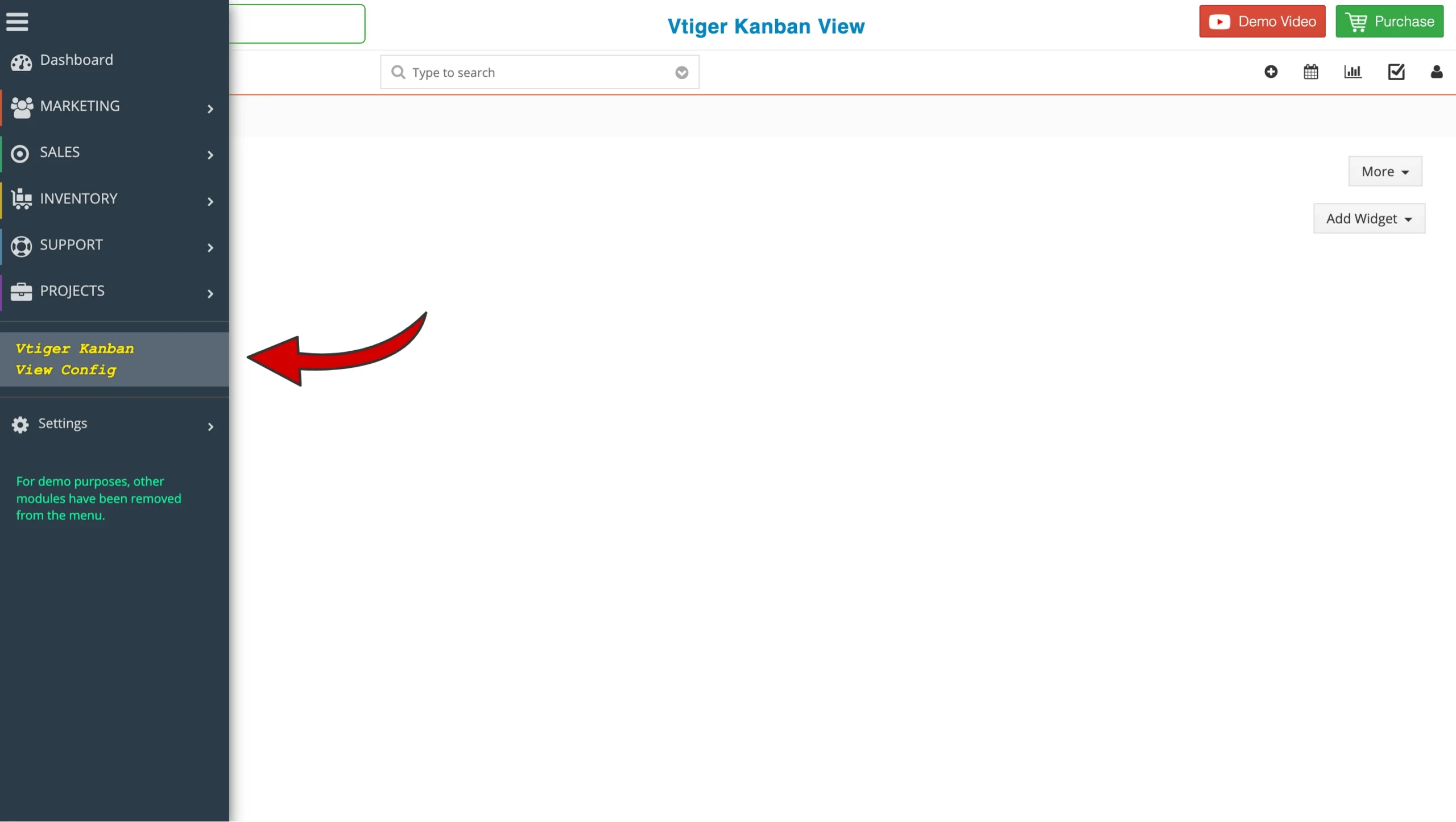
Step 1: Accessing Kanban view Configuration
Once your purchase is complete and the extension is installed
To begin, ensure you have administrative access to the vtiger to configure the vtiger extension settings
- Log in to vtiger crm as an administrator
- Navigate to the main menu bar
- Locate and click the vtiger Kanban view config to initialize the setup
Step 2: Enable Kanban view for Modules
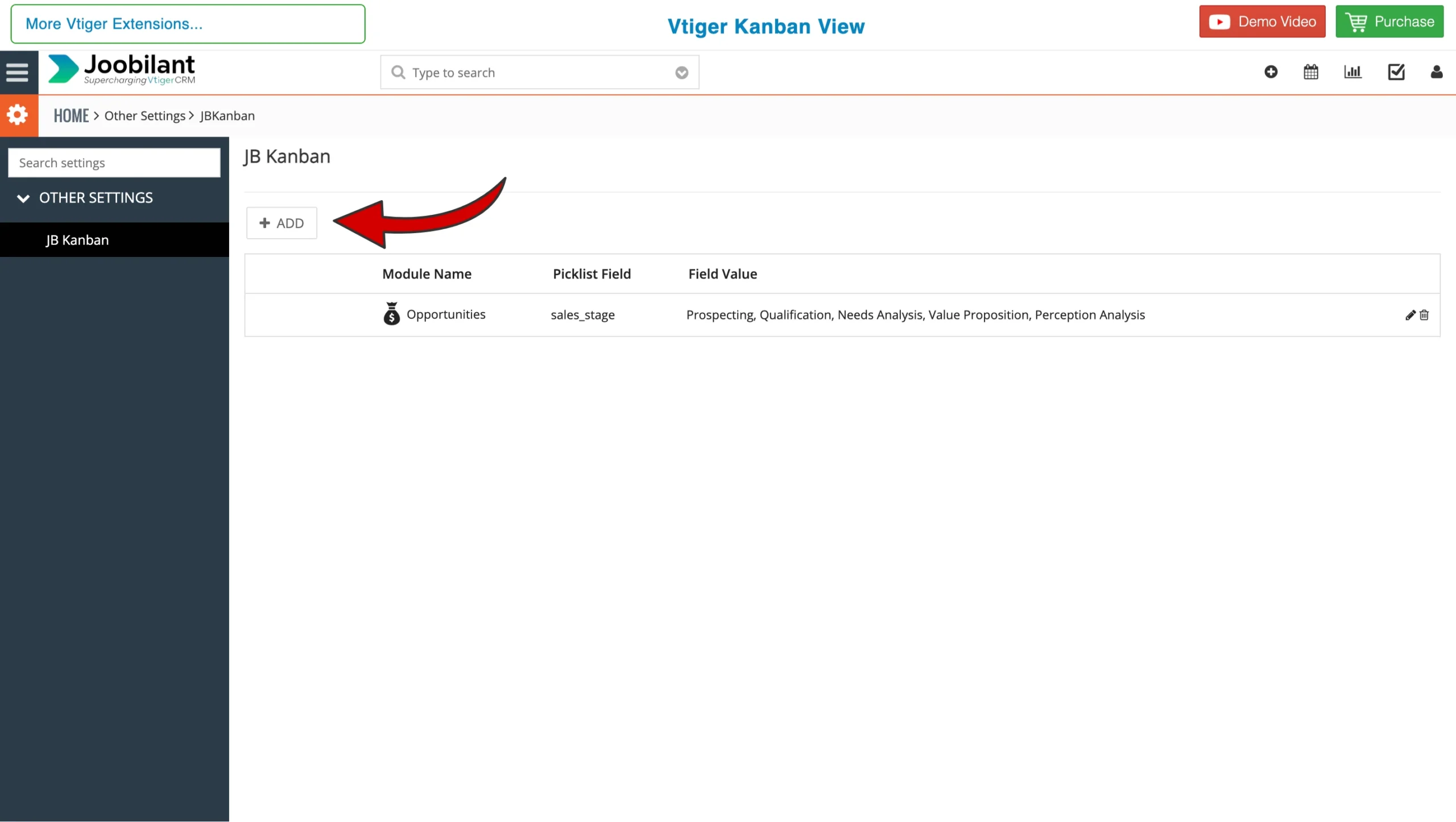
Once in the configuration Panel
- Click Add to start creating a kanban view for modules
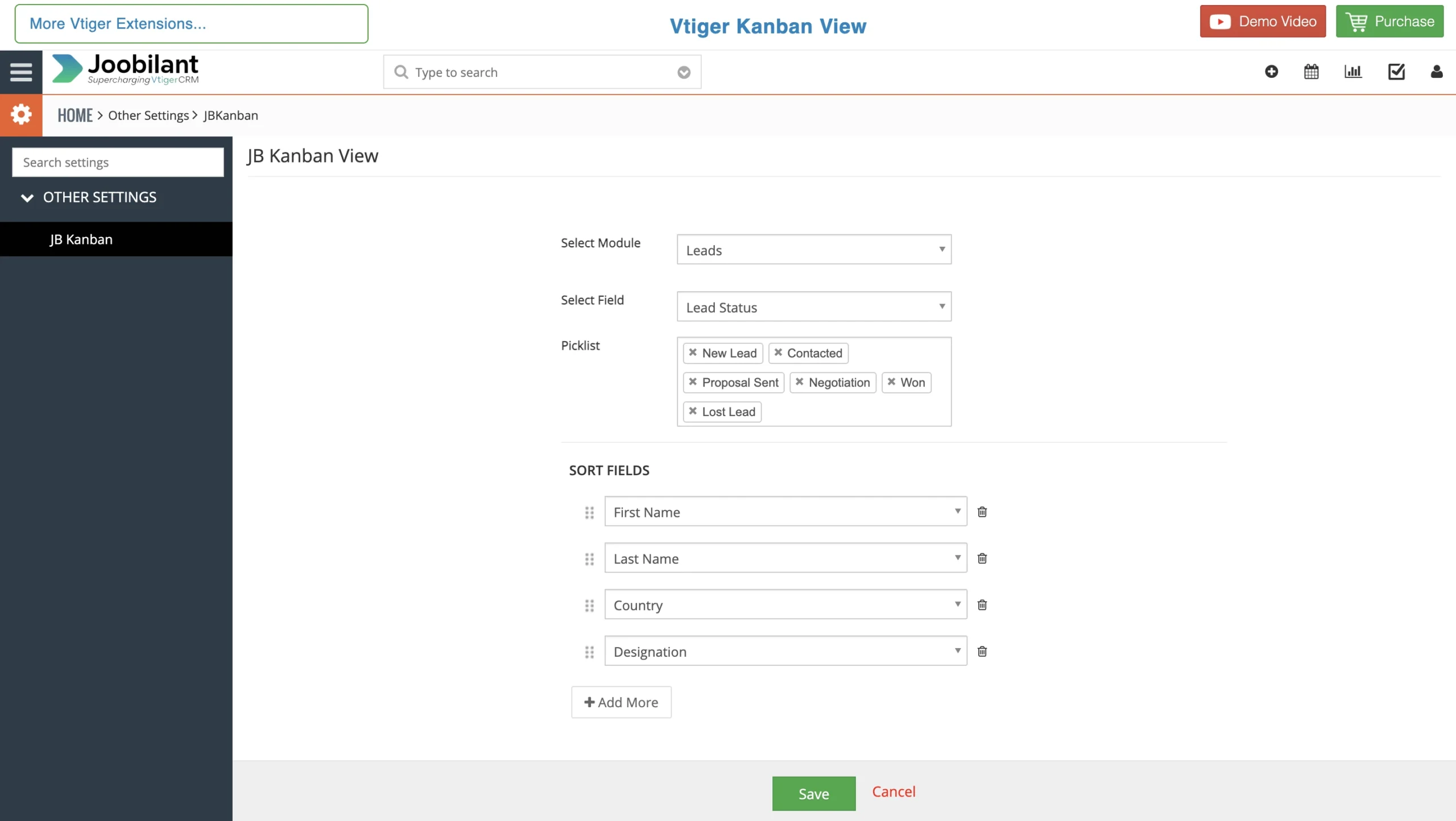
2. Fill in the following details
- Select module: Choose the specific module ( e.g., Leads, Tickets, Deals ) where you want to enable Vtiger Kanban view.
- Select Field: Select the Picklist field you want to see records by stages in kanban view
- Picklist Value: Select the specific stages you want to display as columns in your kanban view board.
- Click save to Apply Changes
Step 3 Lauching kanban view
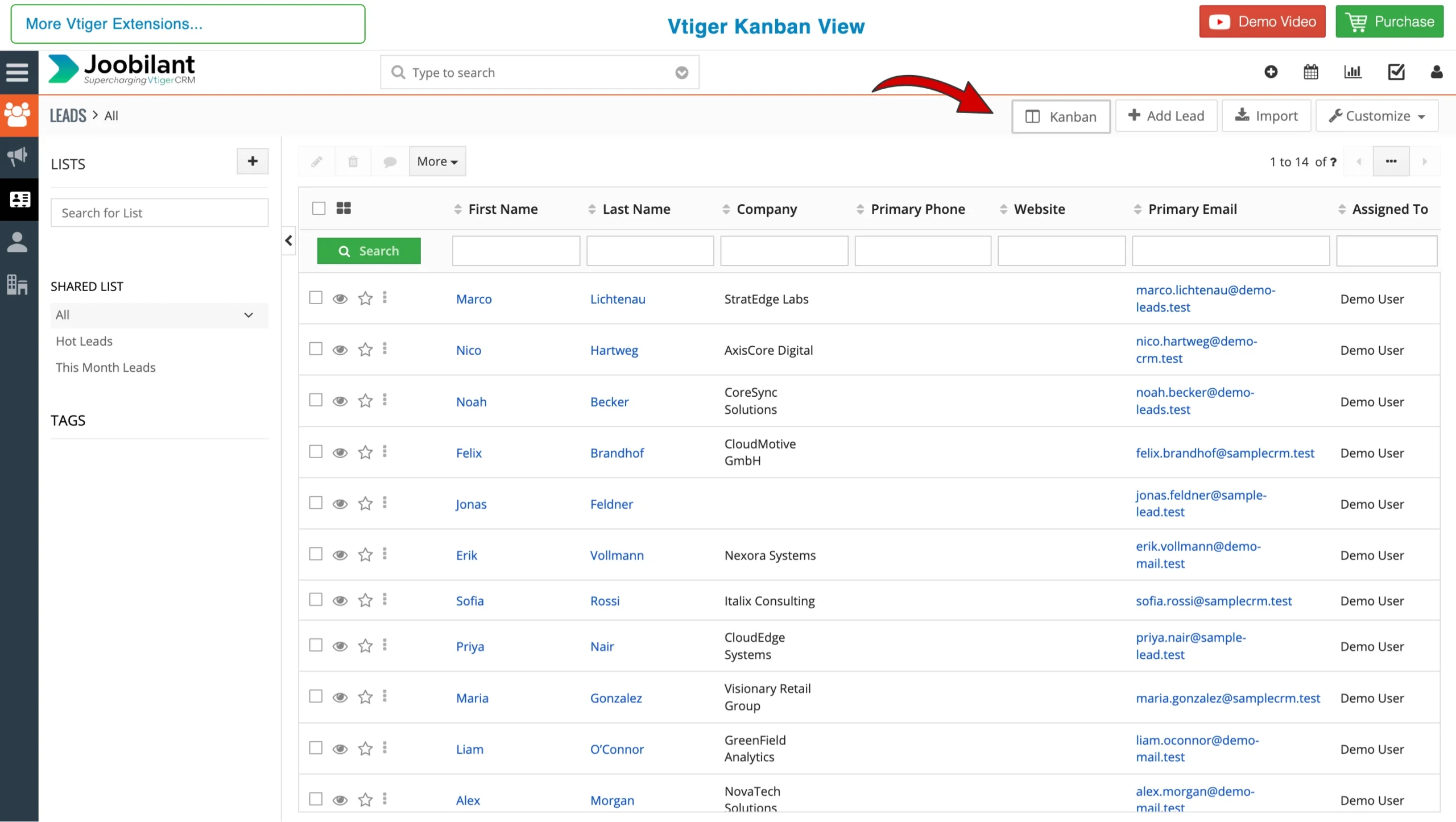
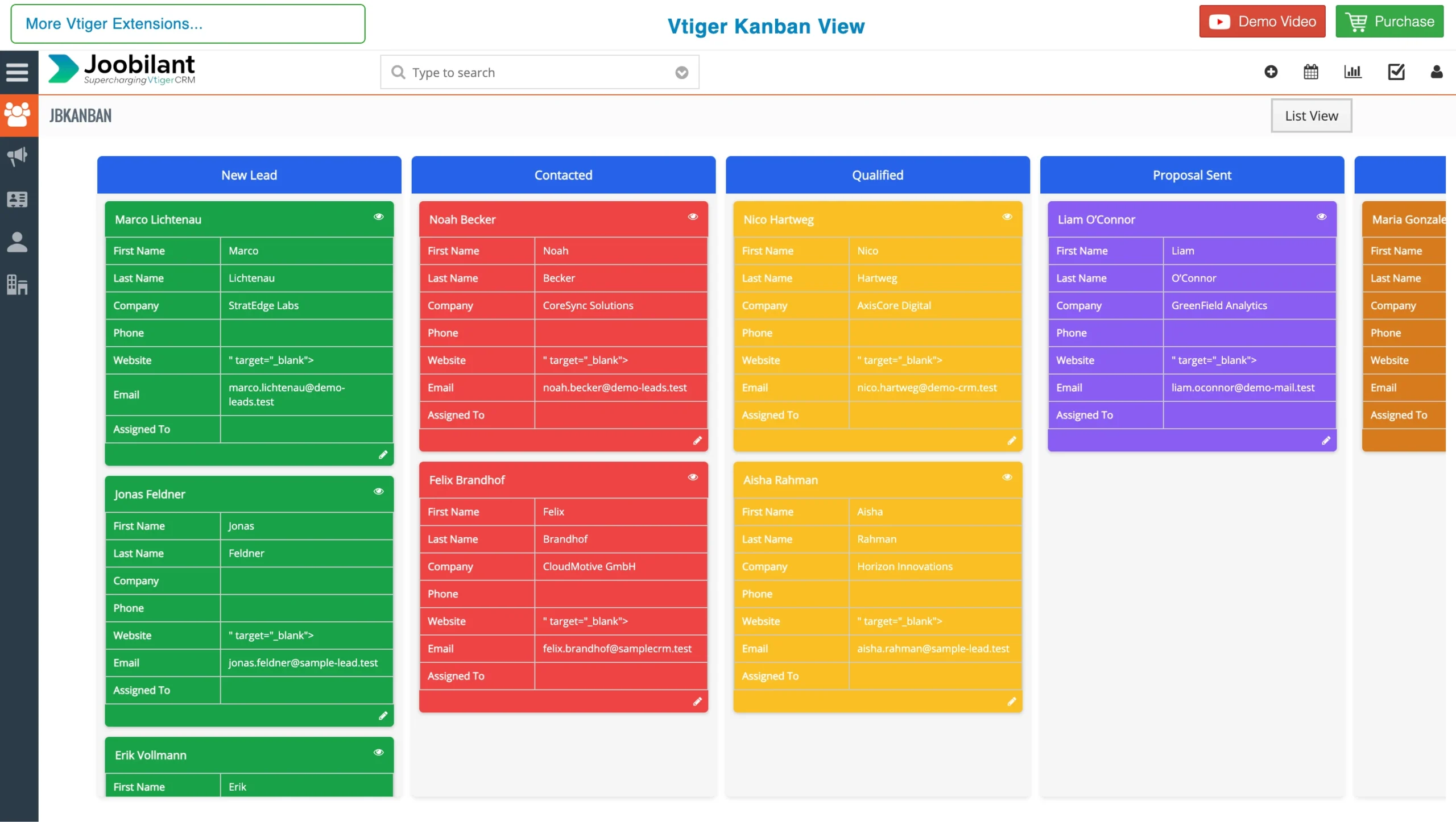
After configuration, you can switch from the standard list view to the kanban view boards
- Navigate to the module that enables Kanban view
- Look for the Kanban button in the top right corner
- Click it to instantly toggle your records into Kanban view
Step 4: Maximising Your Workflow
Here are the More features:
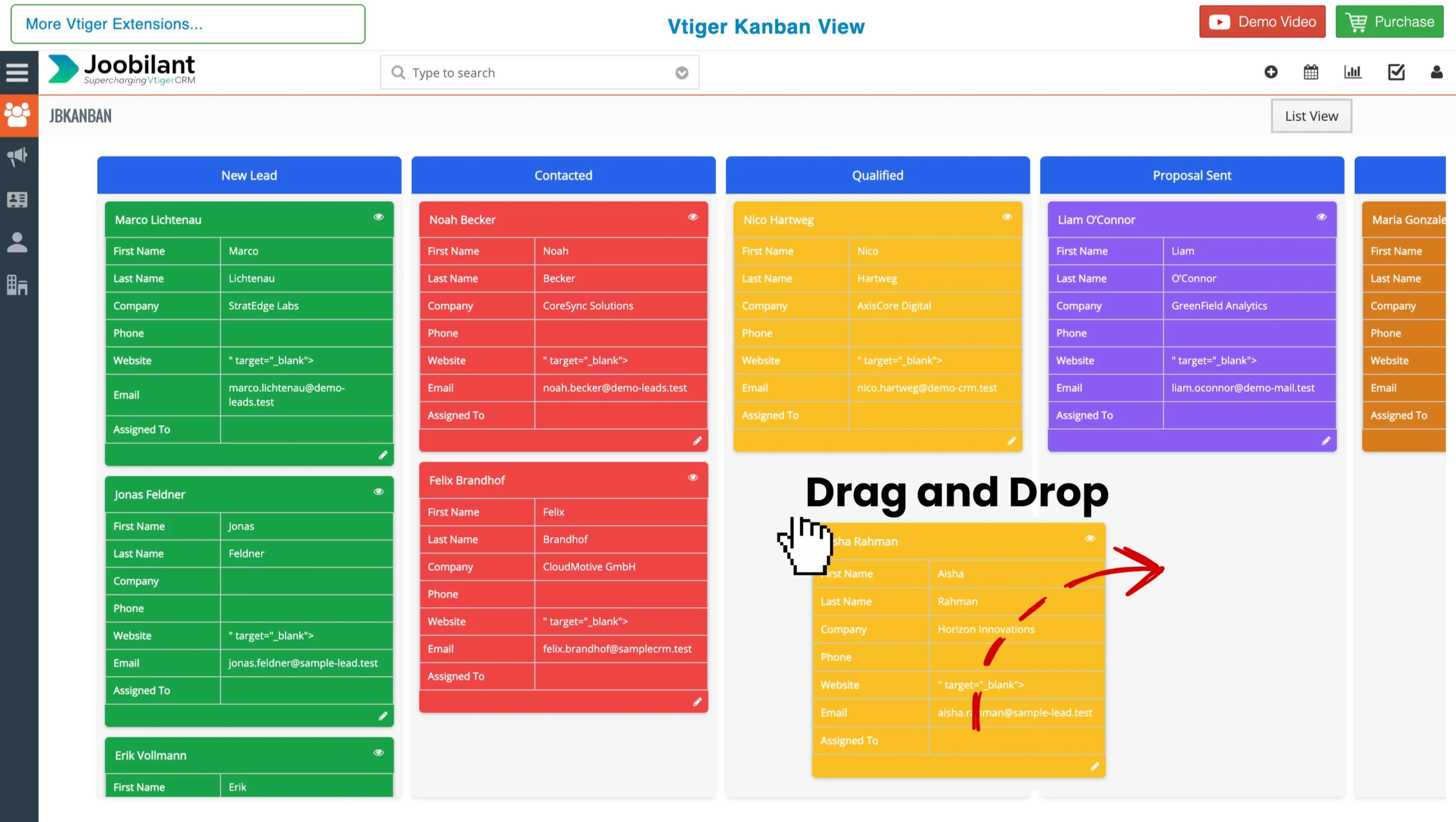
Effortless Drag and Drop:
Update the record status instantly. For example, in the leads module, you can move a record from “new lead” to “contacted” simply by dragging the card to the next column. The vtiger crm updates the field value automatically.
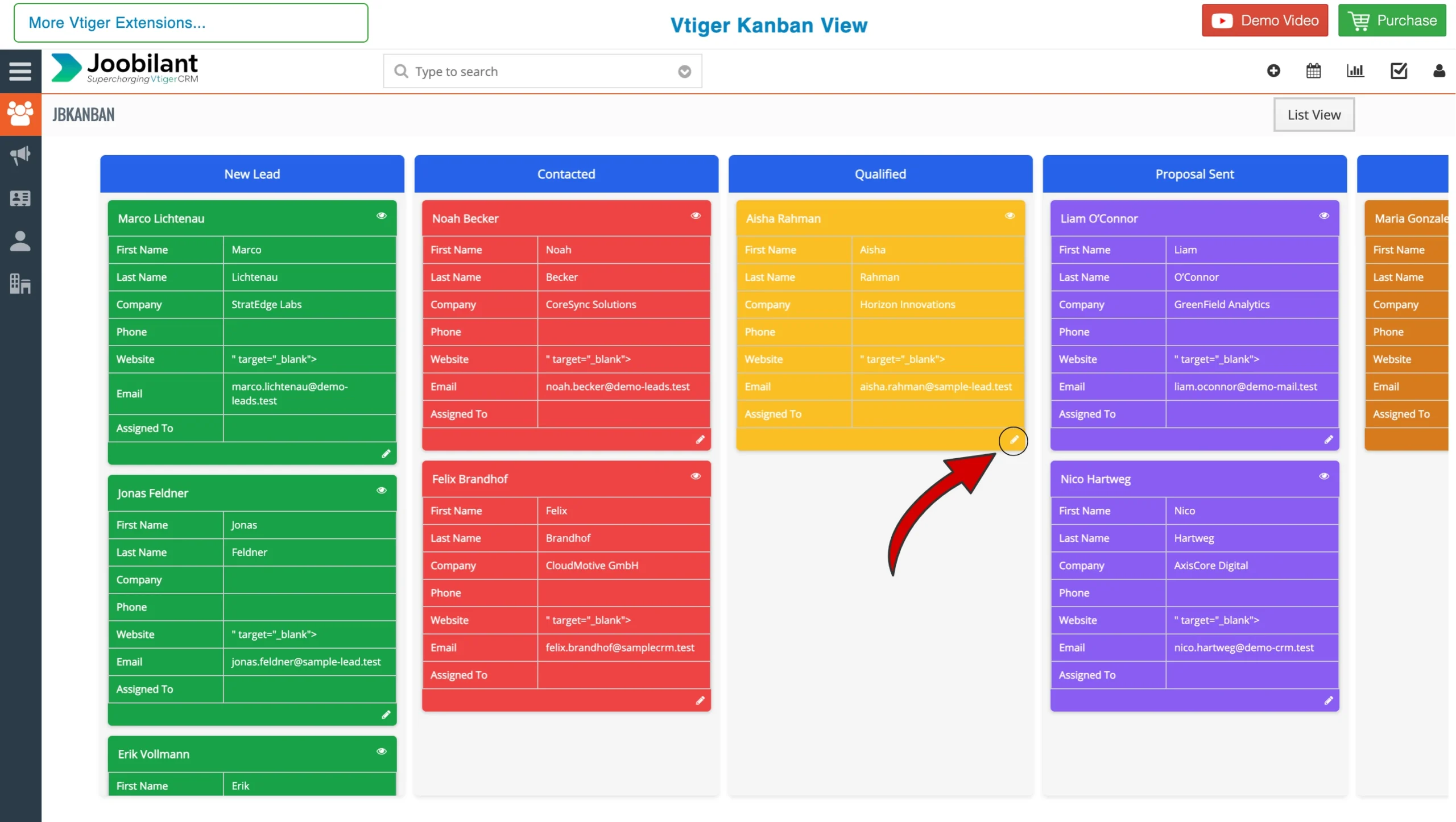
Quick Edit Access:
Need to edit Details? Click the edit icon located in the bottom right corner of any kanban card. This will directly take you to the records detail page. To return, simply click kanban button
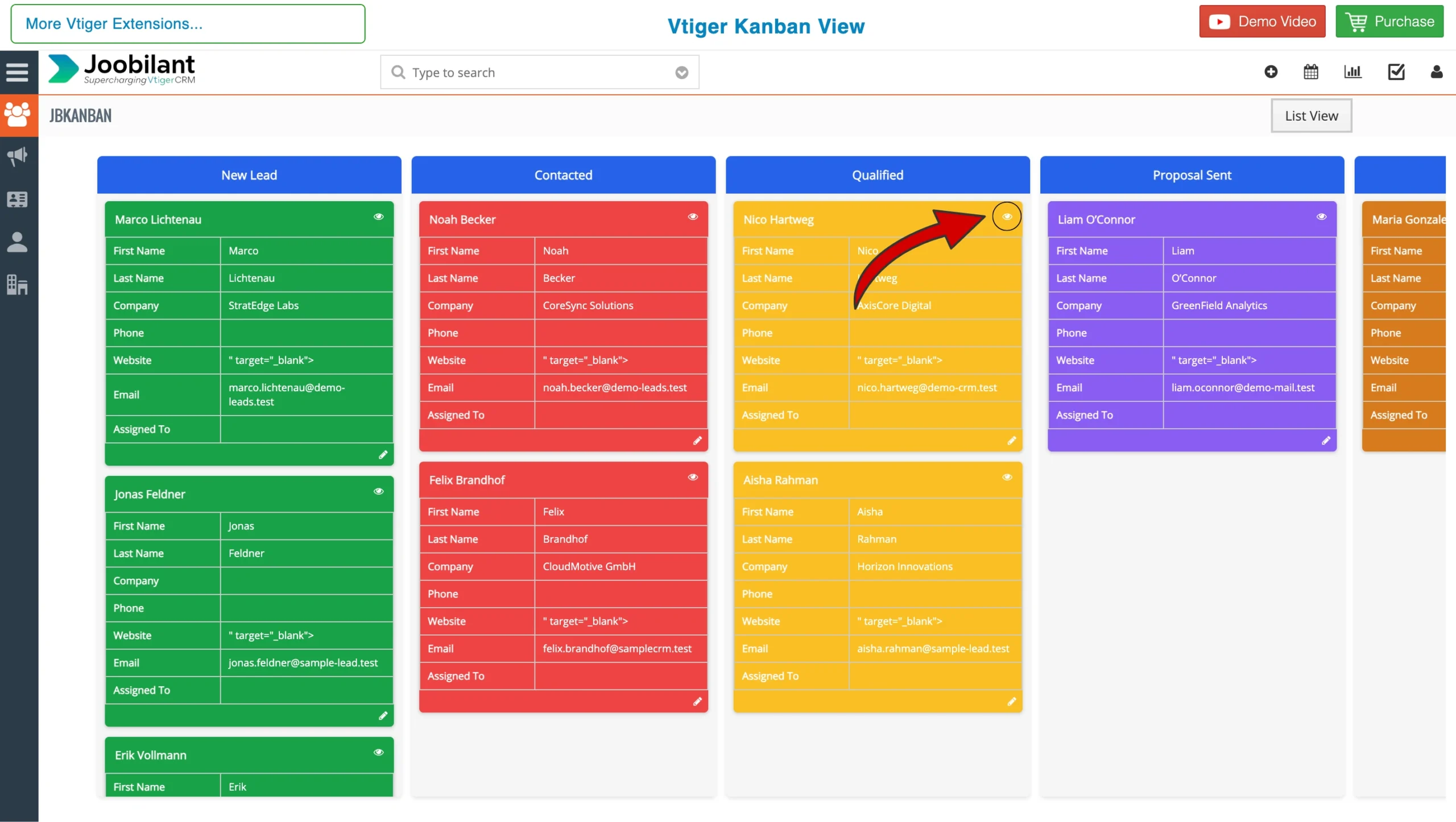
Quick Detail view Access:
If you wanted to go to the detail view of the record, click the Eye icon in the top right corner of any kanban card, and you will be directed to the detail page of the particular record.
Conclusion
By implementing the Kanban view for vtiger, your team moves beyond static data entry into a world of visual management. This guide has covered the essential steps to configure your boards, map your field, and manage your records with simple drag and drop actions. With your pipeline now visible and interactive, you are equipped to identify bottlenecks faster and maintain a cleaner, more accurate crm. For further assistance or advanced configuration tips, contact our team