Progress Bar for vtiger opensource extension helps your team visually track the status of a record directly inside Vtiger CRM. Instead of checking the status field manually, users can instantly understand how far a lead, deal, or task has progressed right from the record view.
After successfully purchasing and installing the vtiger progress bar extension, follow these steps below to configure and use it.
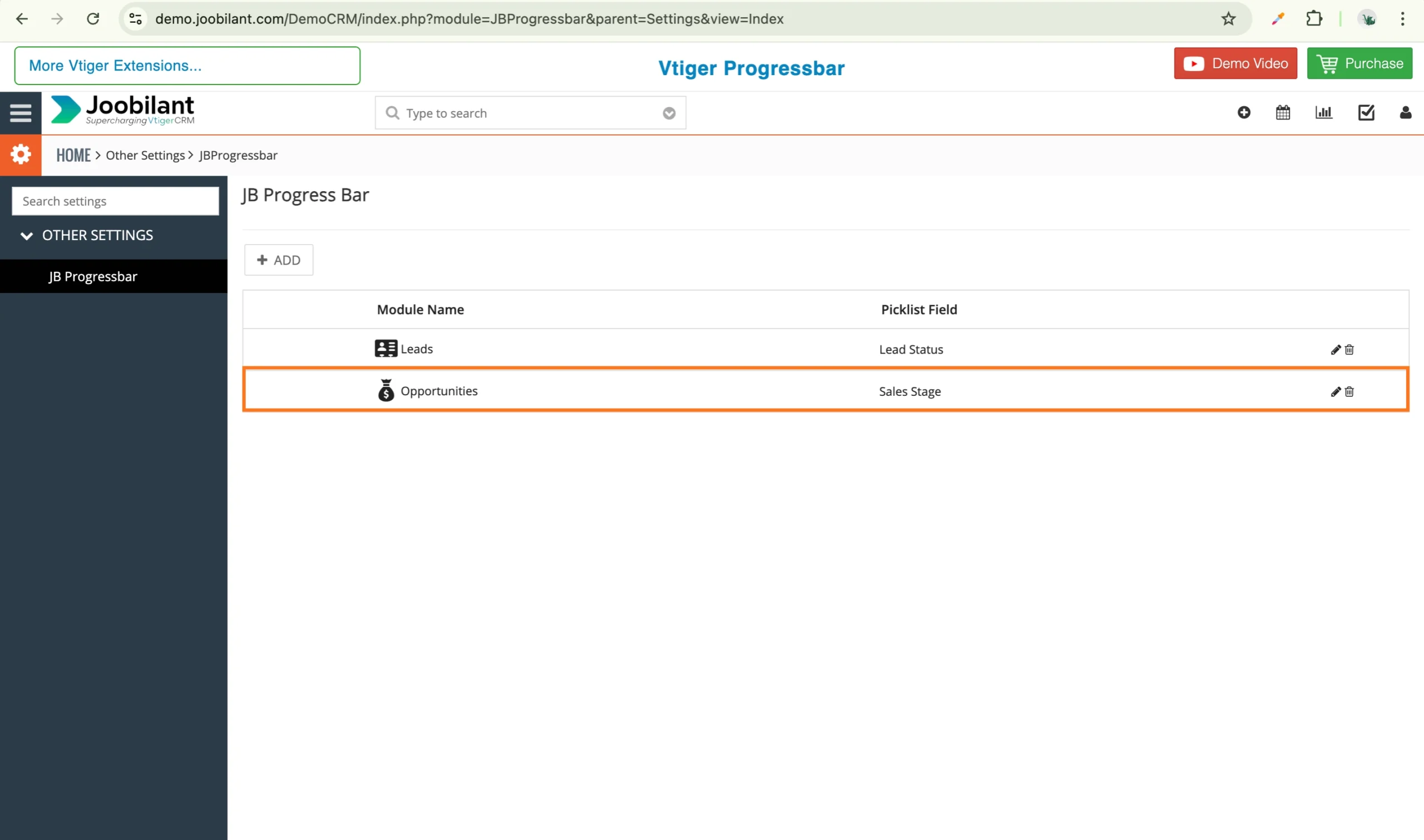
Step 1: Access the progress bar configuration
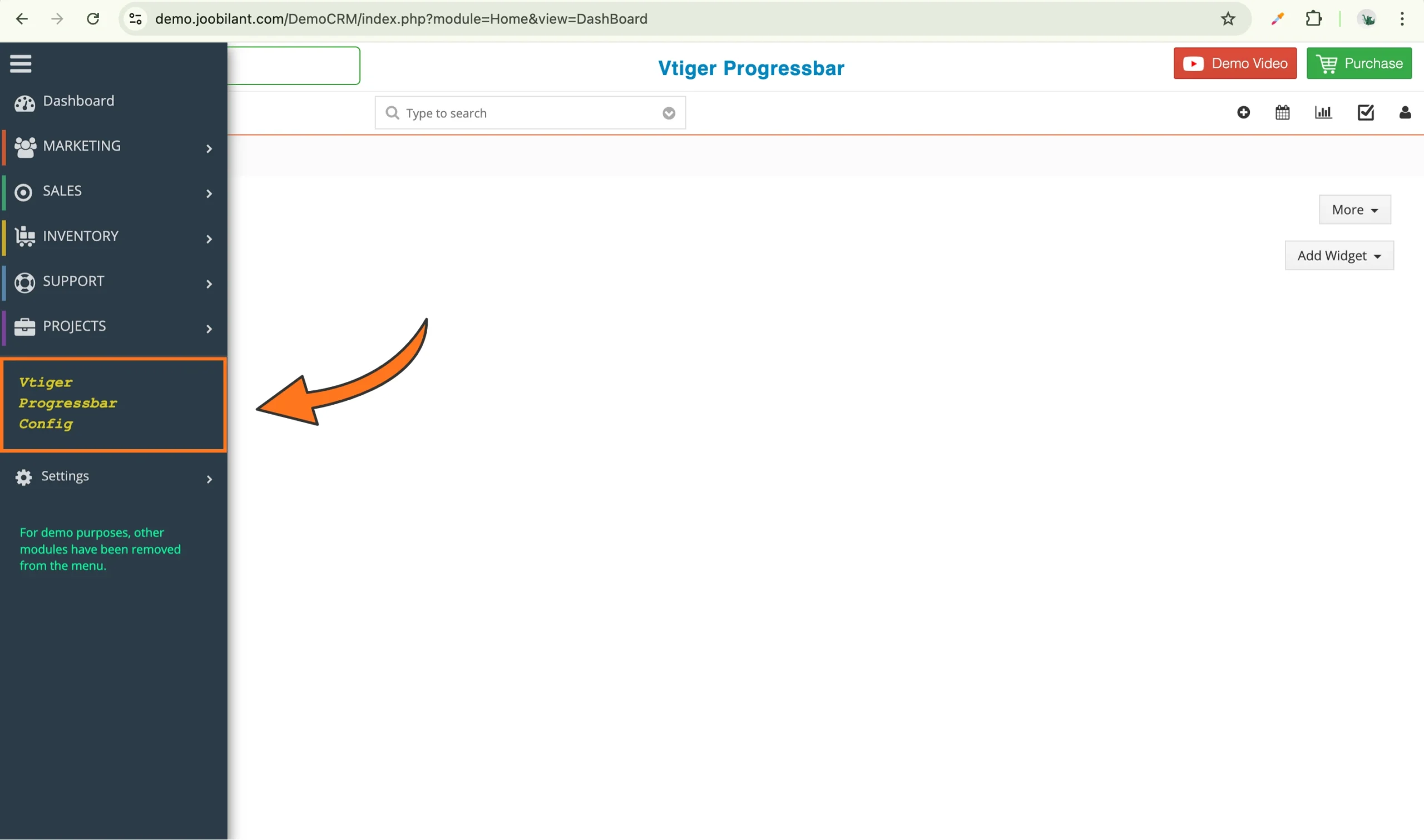
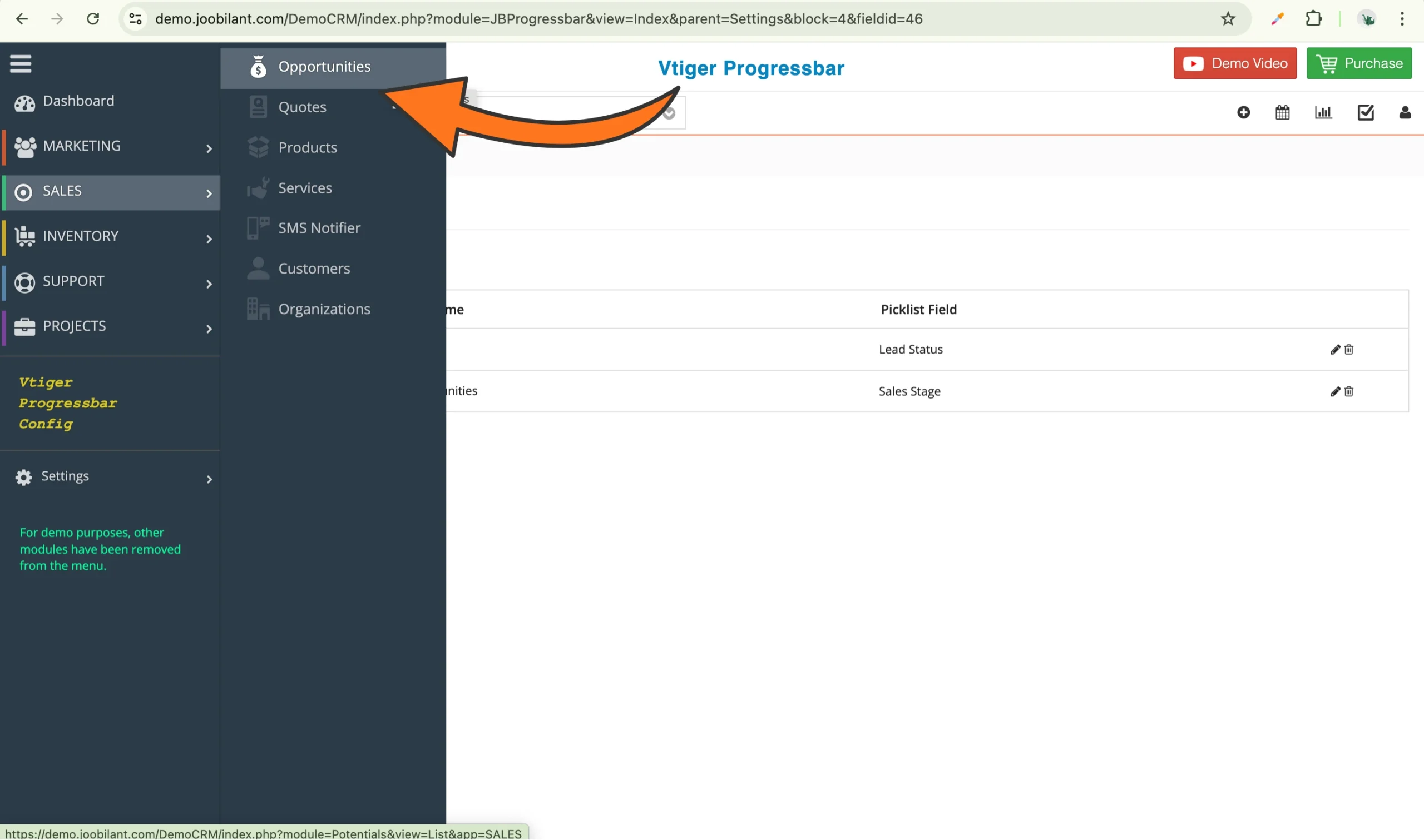
- Log in to your vtiger crm
- From the menu bar, click on vtiger progress bars config
Step 2: Add a new progress bar configuration
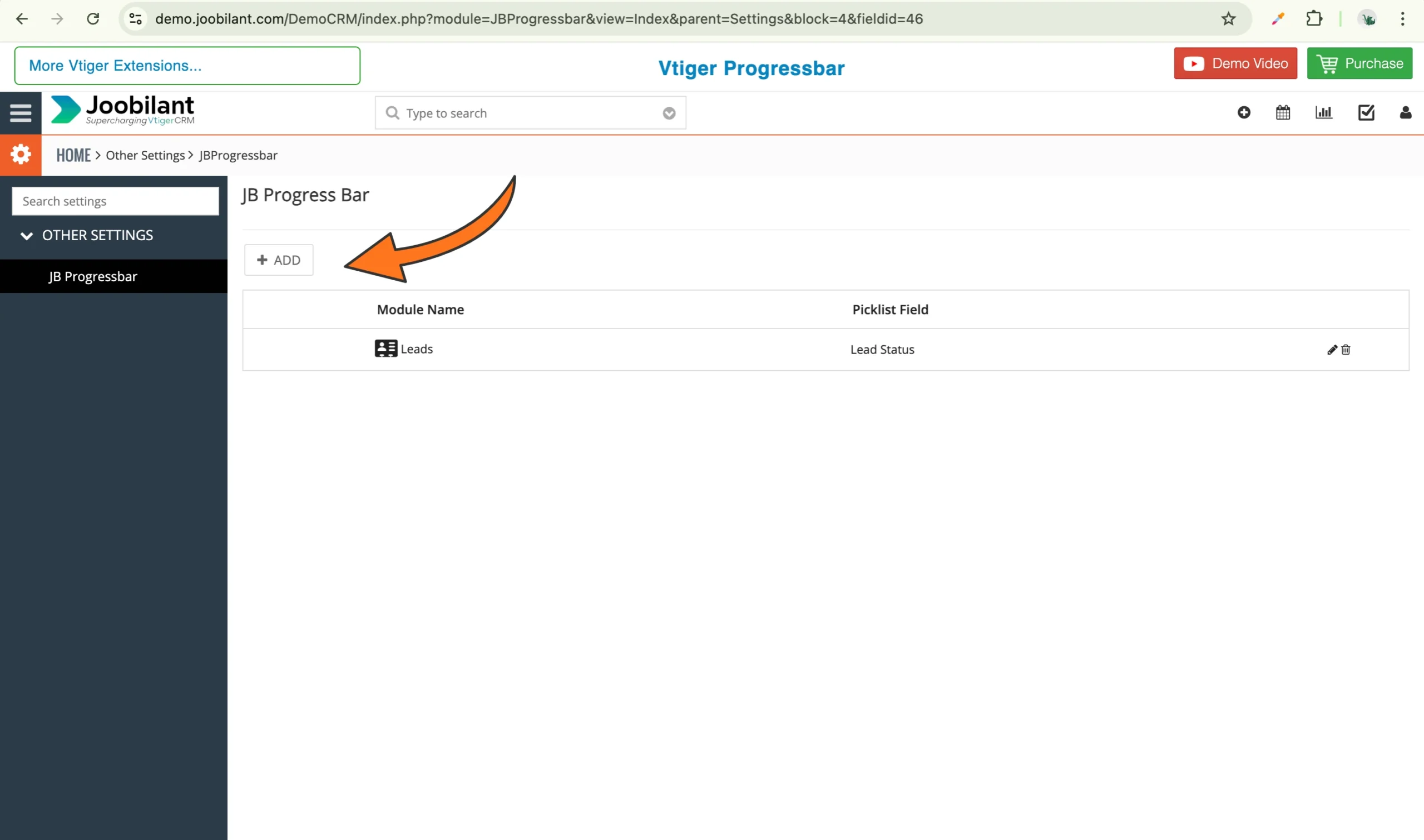
This section allows you to create and manage progress bars for different modules.
- Click on add to configure the progress bar for the module.
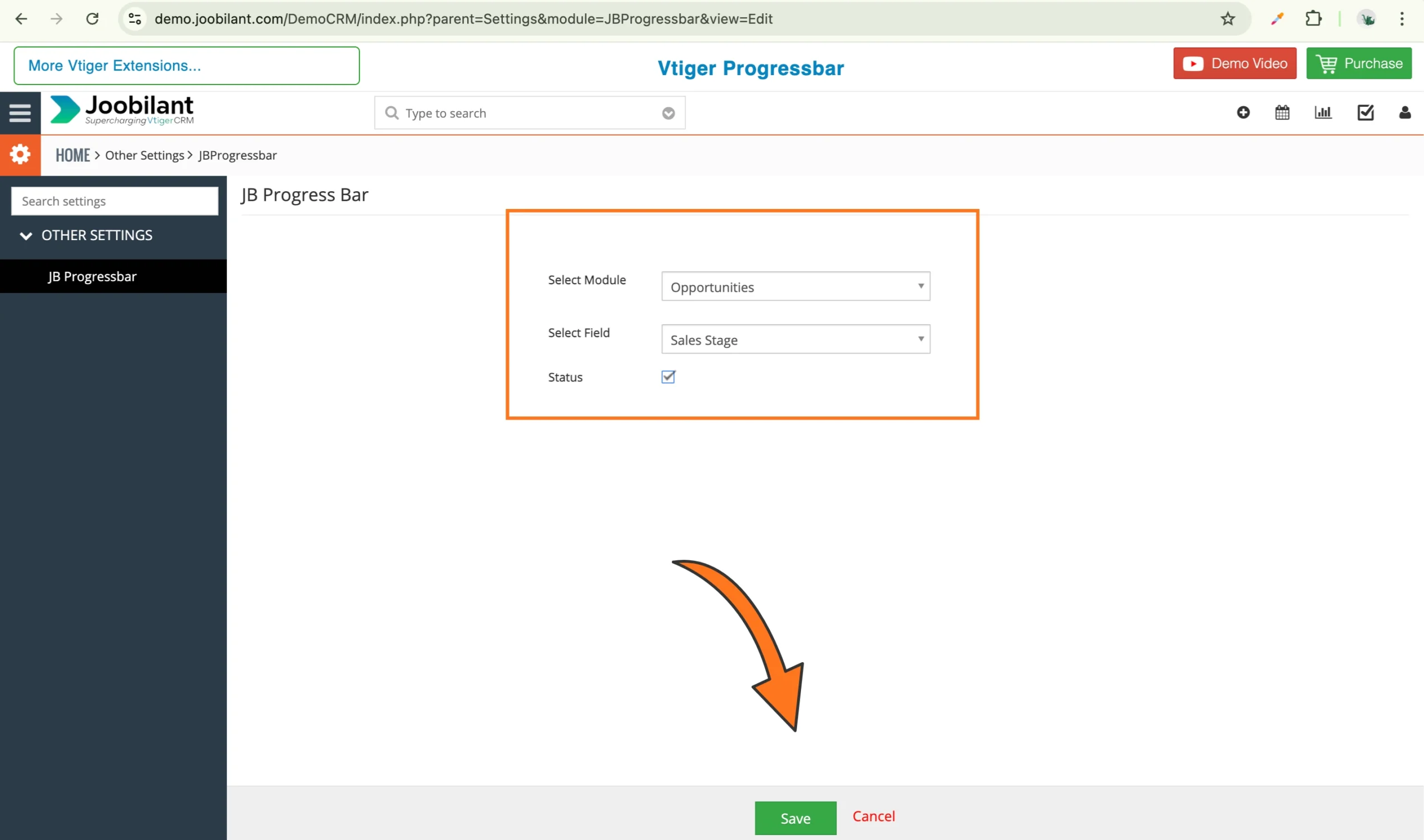
2. Fill the following fields
- Select module: choose the module where you want to activate the progressbar
- Select Field: Select the field that contains the status or stage values.
- Status: Enable the checkbox to activate the progress bar for this configuration.
3. Click save to apply the settings.
Once saved, the progress bar will be linked to the selected module and field.
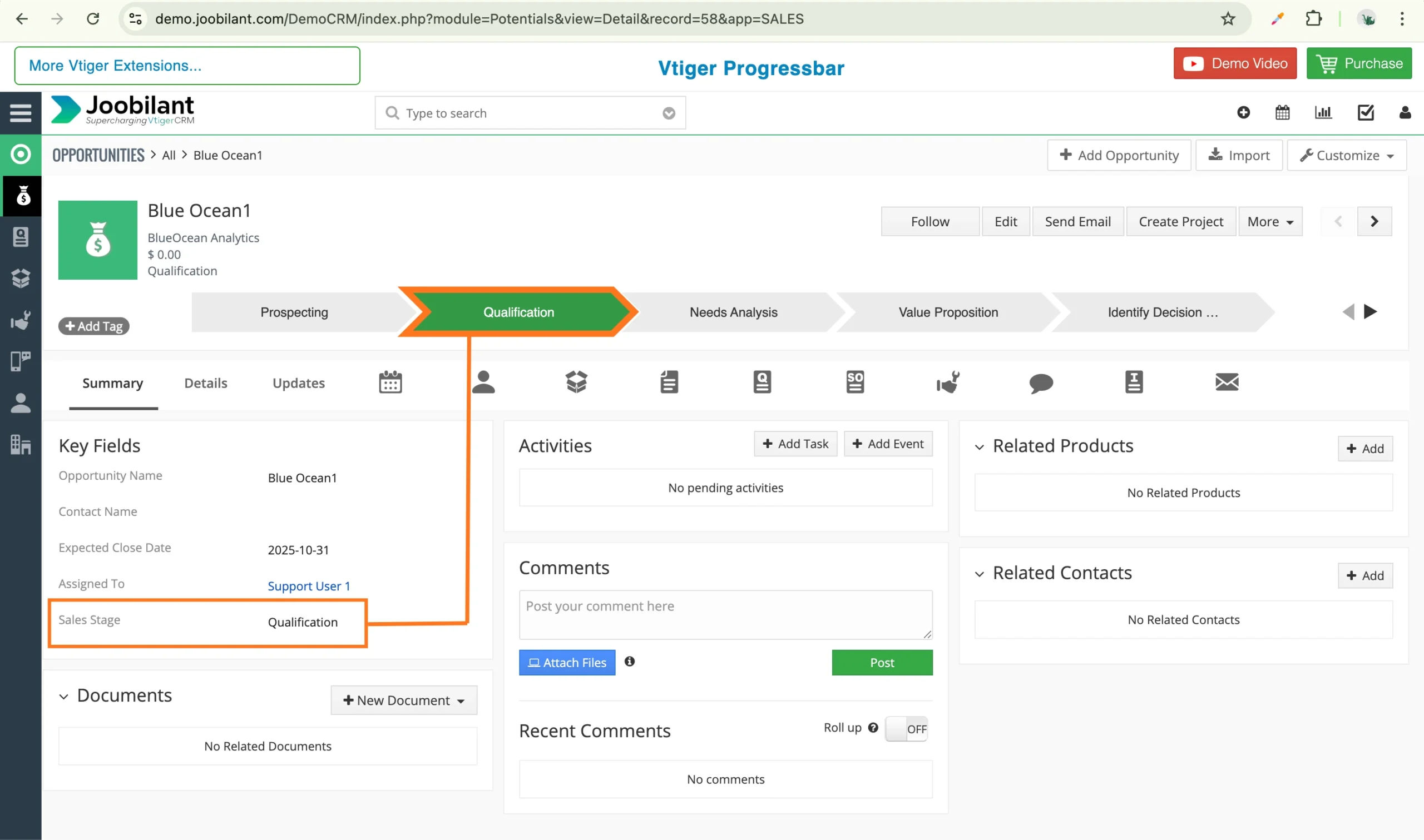
Step 3: Verify the progress bar for Vtiger
- Go to the module where you enabled the progress bar.
- Open any record from the list view
You will see the progress bar displayed in the header area of the record.
The progress bar for vtiger automatically reflects the current status of the record, giving users an instant visual update.
Conclusion
The Progress Bar for vtiger makes it easier for teams to track progress at a glance, reduce confusion, and stay aligned with business workflows. Visually representing record status, it improves efficiency and helps teams focus on actions rather than manual checks.
Once configured, the Progress Bar For vtiger works seamlessly in the background, providing clarity, consistency, and a better user experience across your CRM.